Introduction
In a scenario you have to write report for your boss, you imagine that your boss needs a dashboard, and you are not Data Engineer or Developer. You would be going to vibe code and you have streamlit as keyword. After that you need to show your report to your boss, but your boss is a security guy, he/she ask you to add authentication to your report. So you need to add authentication to your report. Basic auth is not enough even if it is only for internal users. Then you have an existing Keycloak cluster in your company. So you just need to create new realm in Keycloak for your application then make your application integrate with Keycloak. This article will show you how to do it and for me to remember xD
We will use Keycloak as the identity provider and Streamlit as the application. We will use OIDC (OpenID Connect) protocol to integrate them.
Step lists:
- Create new realm
- Create new client
- Create sample user
- Create sample streamlit application
- Integrate them
Prerequisites
- Docker & Docker Compose
- Python 3.12 (verified with this demo)
Sample Streamlit Application
Just clone this ready to run repo and follow the README.md to run it: https://github.com/BlackMetalz/streamlit-authentication-with-keycloak-sample
Hmm, last step streamlit run will fail because we haven't set up Keycloak yet. So we need to set up Keycloak first xD
Keycloak Setup
For a god damn easy way, you will want to use docker compose to run Keycloak. Source here: Keycloak26+Postgres18
services:
  postgres:
    image: postgres:18
    container_name: postgres_keycloak
    volumes:
      - postgres_data:/var/lib/postgresql
    environment:
      POSTGRES_DB: keycloak
      POSTGRES_USER: keycloak
      POSTGRES_PASSWORD: super_secret_password
    ports:
      - "5432:5432"
    healthcheck: # it should be ready before keycloak starts
      test: ["CMD-SHELL", "pg_isready -U keycloak -d keycloak"]
      interval: 10s
      timeout: 5s
      retries: 5

  keycloak:
    image: quay.io/keycloak/keycloak:26.1
    container_name: keycloak_server
    command: start-dev
    environment:
      KC_DB: postgres
      KC_DB_URL: jdbc:postgresql://postgres:5432/keycloak
      KC_DB_USERNAME: keycloak
      KC_DB_PASSWORD: super_secret_password
      KC_BOOTSTRAP_ADMIN_USERNAME: admin
      KC_BOOTSTRAP_ADMIN_PASSWORD: admin@123
    ports:
      - "8080:8080"
    depends_on:
      postgres:
        # Document about service_healthy here: https://docs.docker.com/compose/how-tos/startup-order/
        condition: service_healthy

volumes:
  postgres_data:
You can simply use it by running command: docker compose up. Then you will have a ready Keycloak instance at http://localhost:8080.
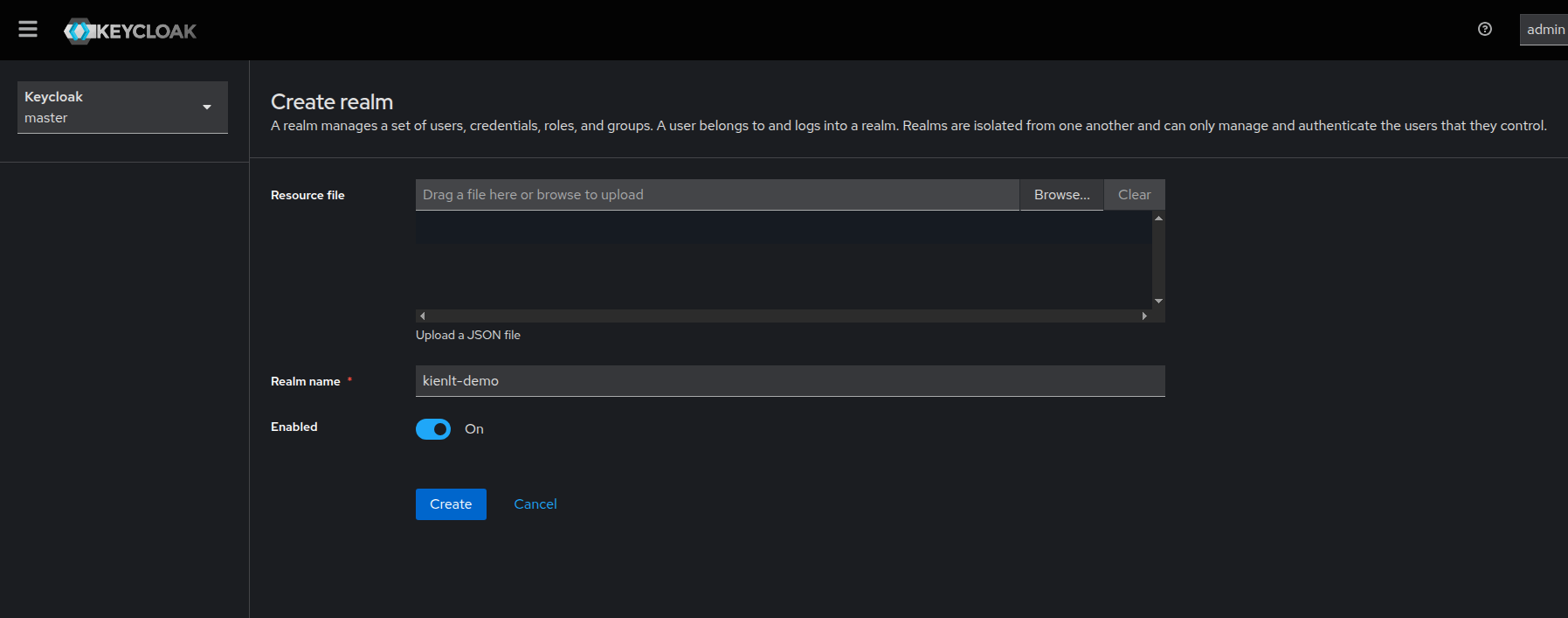
Create new realm for testing purpose
Who test at master realm? No one, not even me xD
URL to create new realm: http://localhost:8080/admin/master/console/#/master/add-realm
Create new client
URL: http://localhost:8080/admin/master/console/#/kienlt-demo/clients/add-client
Image for easy to follow:
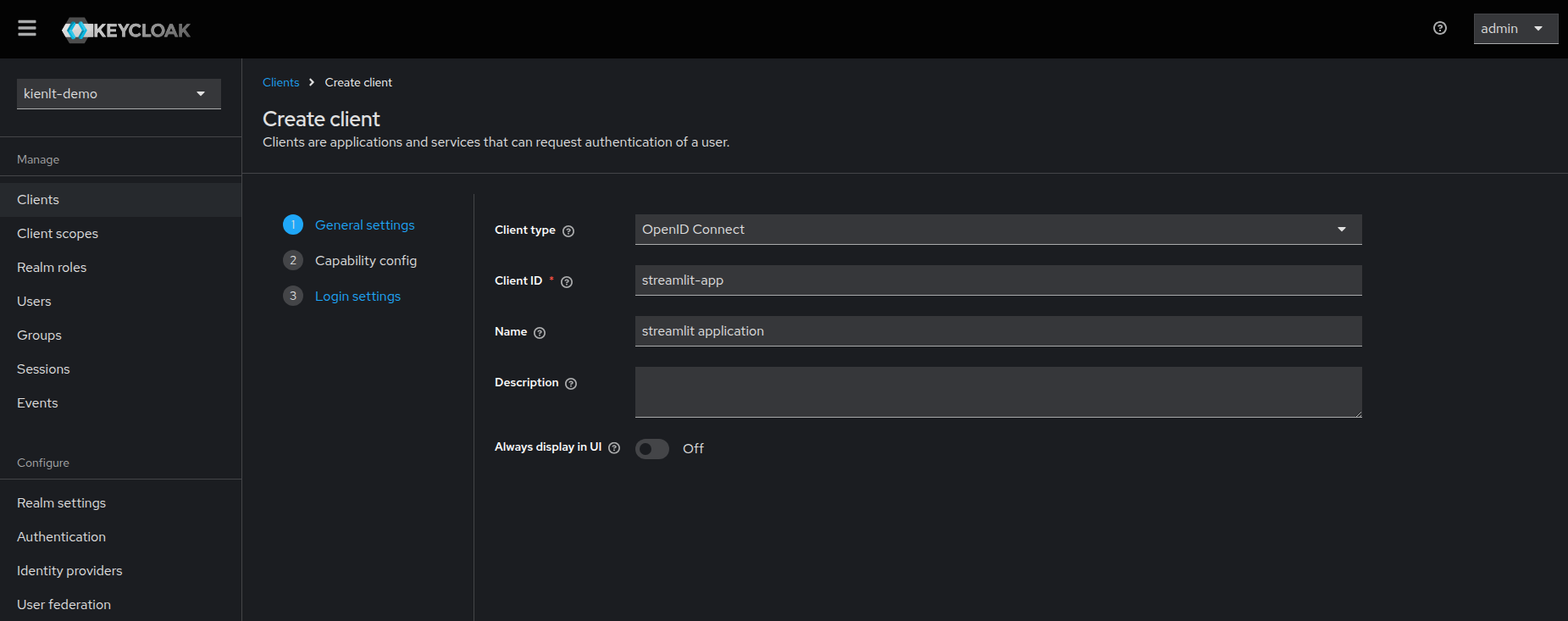
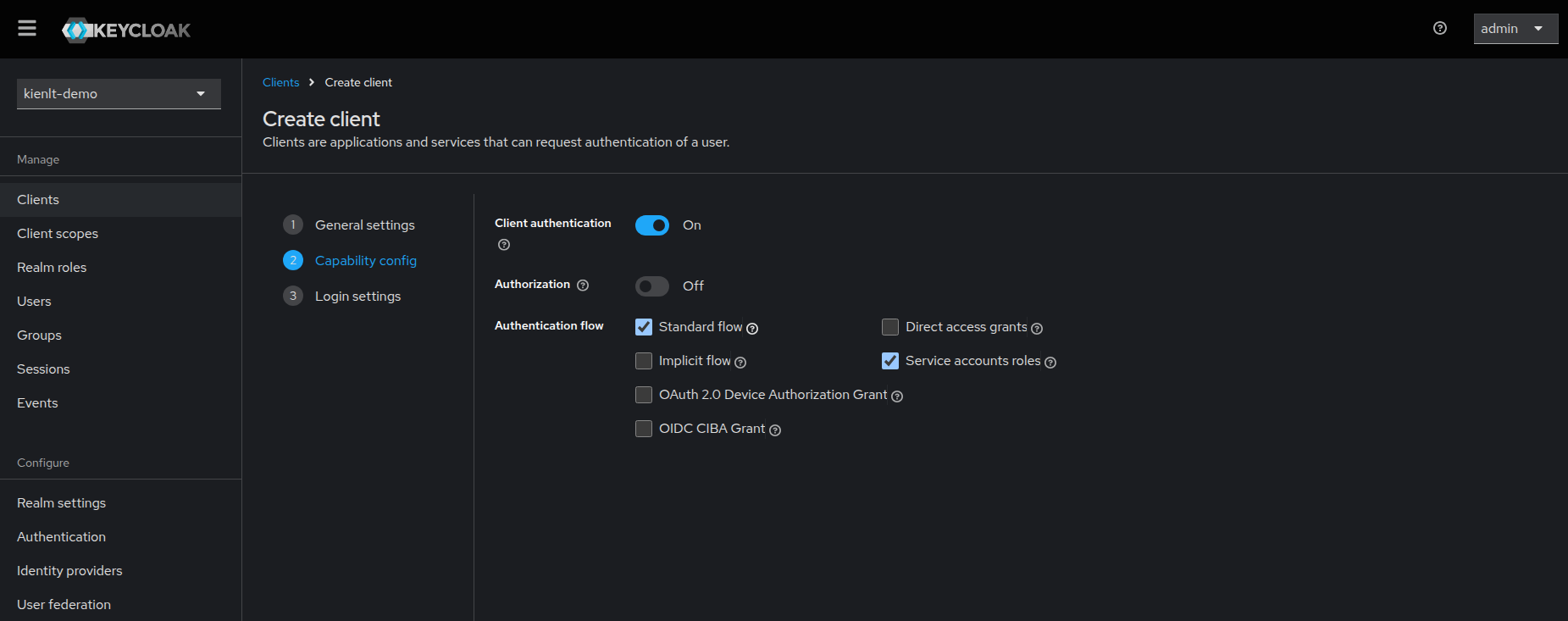
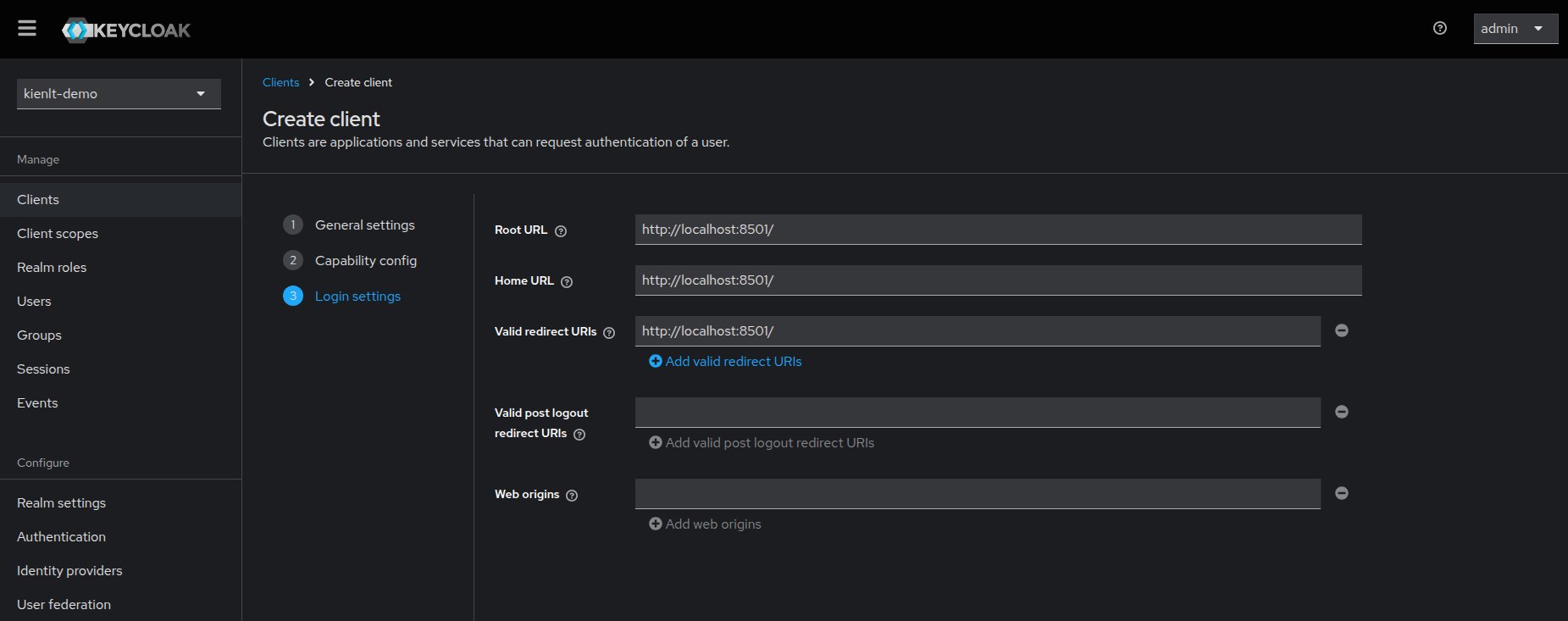
Note: In the screenshot, the Valid redirect URI is incorrect. Please set it to http://localhost:8501/*
Copy client secret and paste to .env file
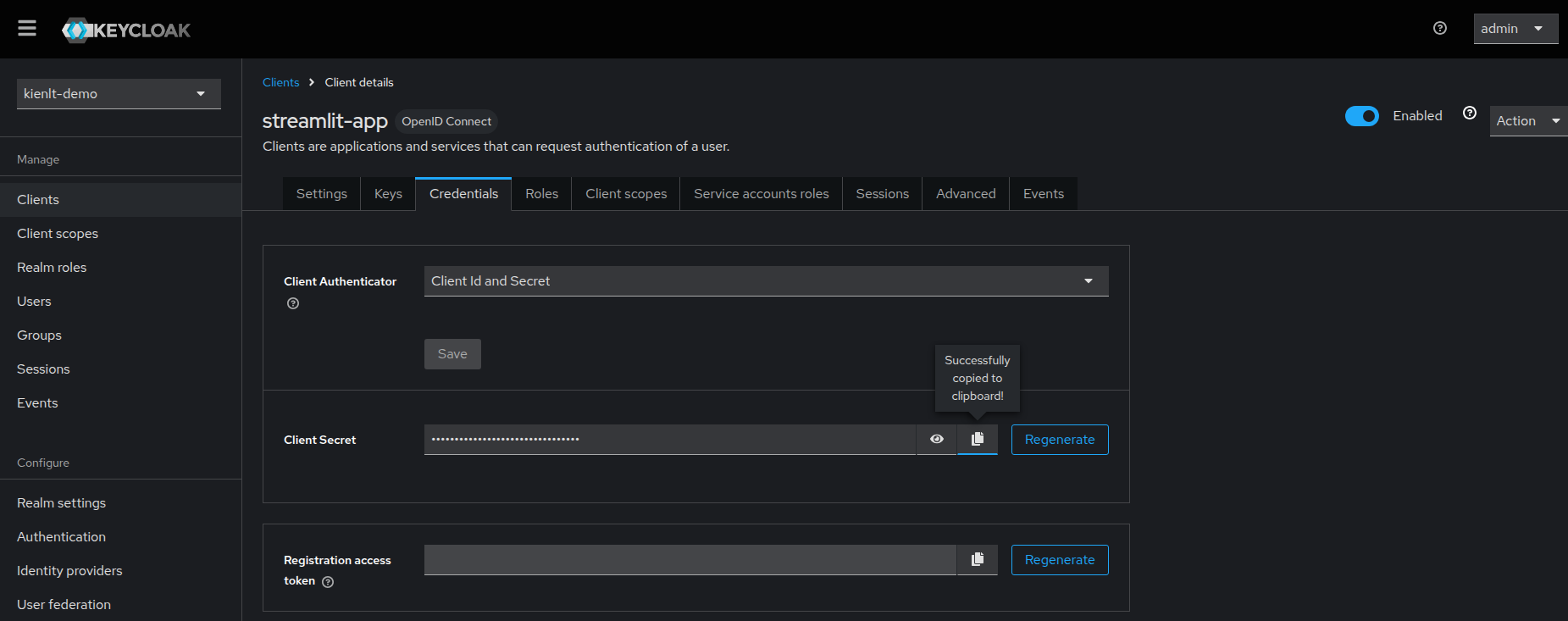
# Set to "false" to disable Keycloak authentication (guest mode)
AUTH_ENABLED=false

# Keycloak Configuration
KEYCLOAK_URL=http://localhost:8080
KEYCLOAK_REALM=myrealm
KEYCLOAK_CLIENT_ID=streamlit-app
KEYCLOAK_CLIENT_SECRET=your-streamlit-app-secret
REDIRECT_URI=http://localhost:8501
Test login directly
Holy shiet, create a test account first!
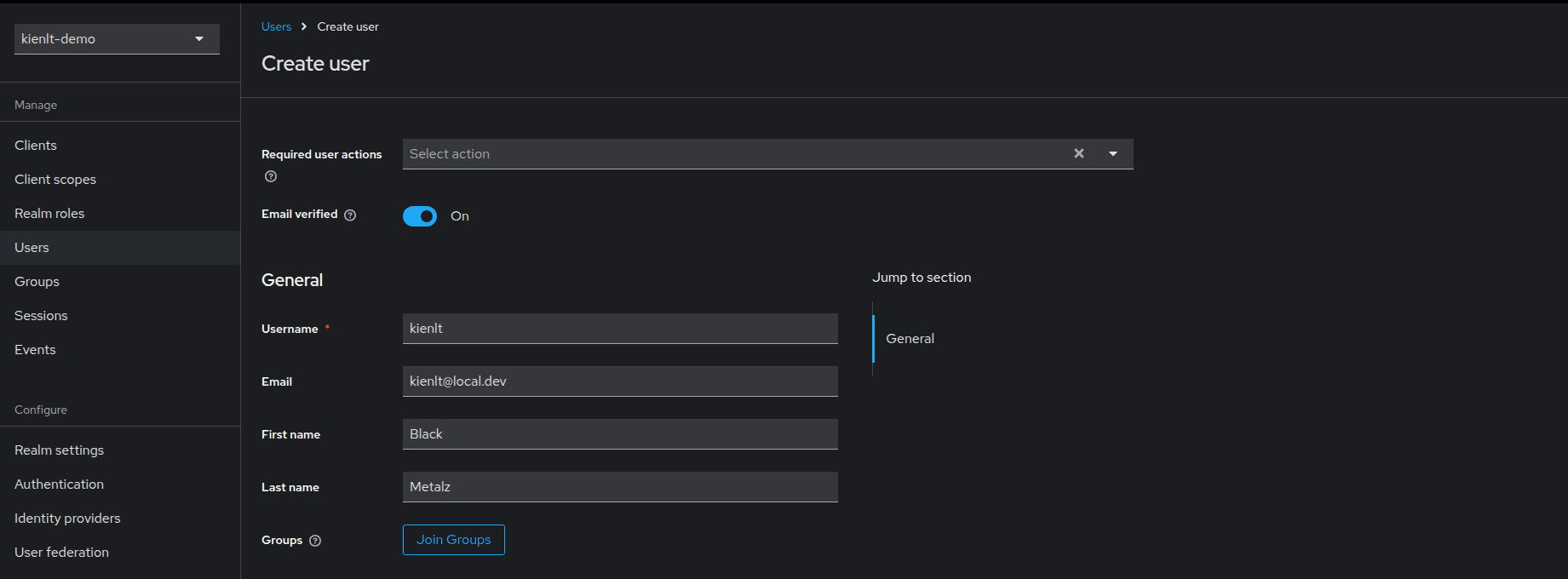
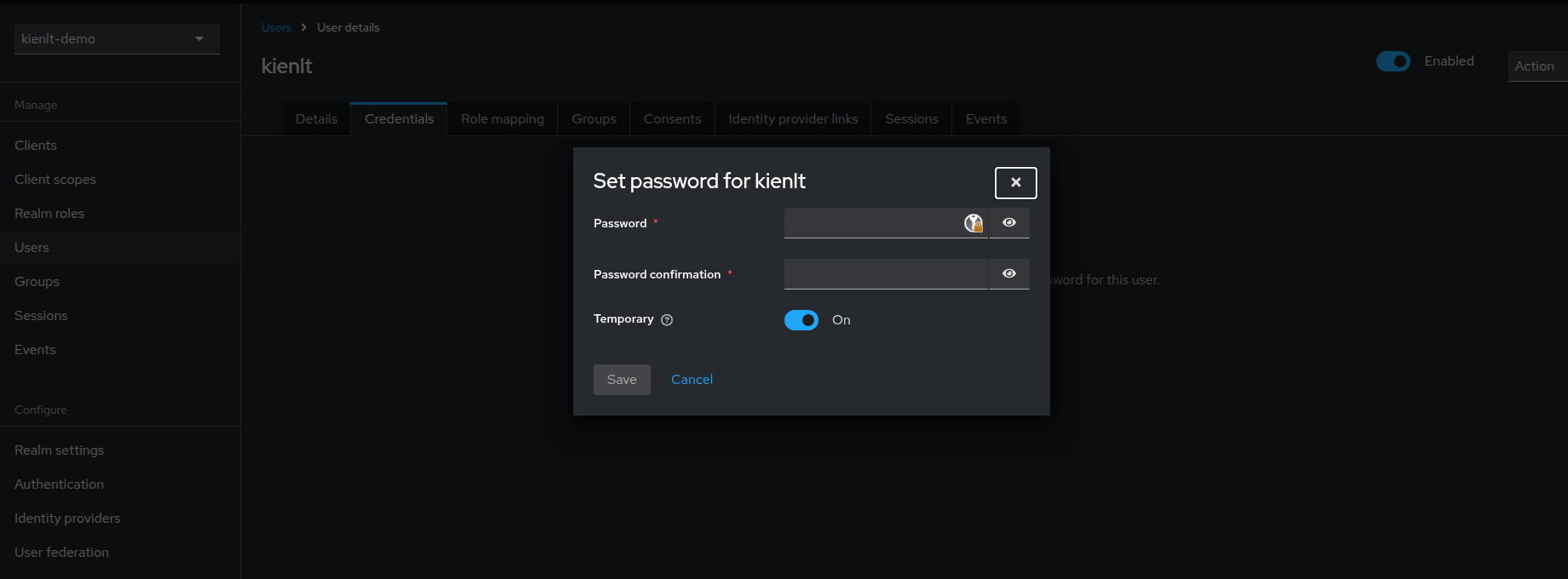
Ok, time to log in. It will pop up the default Keycloak login page. And here is the result after logging in:
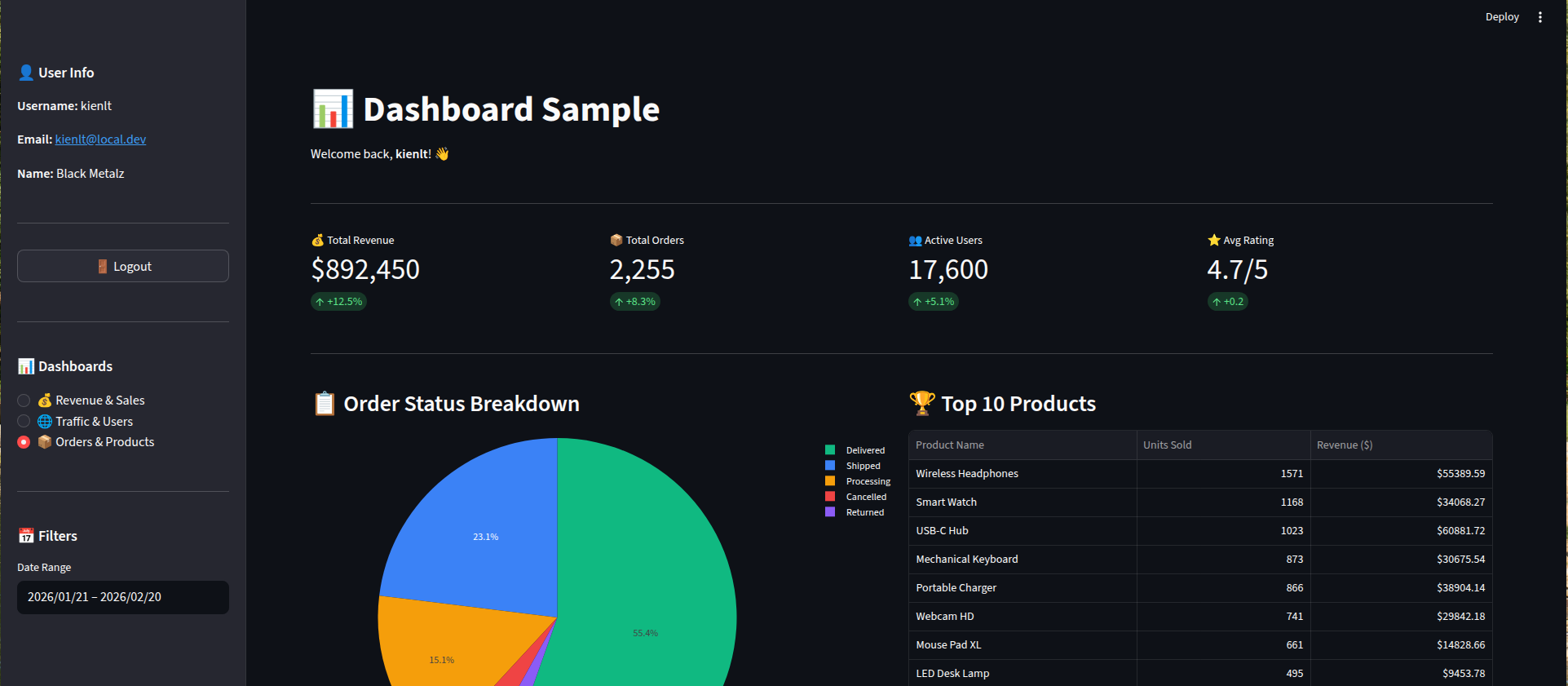
Success! Welcome to my dashboard xD
Conclusion
This is just a solution that fits a specific scenario, that is I don't want to manage any external database, the purpose is just for internal users, not for public. Simple and easy to implement since it needed to ship this dashboard fast with requirements changing daily....